
Для открытия To start RDP, SSH или web-сессий от имени локальных учётных записей ресурса, а также для управления ими необходимо добавить их в базу Indeed PAM. Добавление может быть выполнено двумя способами.
Ручное добавление УЗ
or web sessions under resource local accounts, as well as to manage those, it is necessary to add them to Indeed PAM database. This can be done in two ways.
Adding an account manually
- Switch to the Resources section and find the required resource.
- Open the resource profile and click Add account.
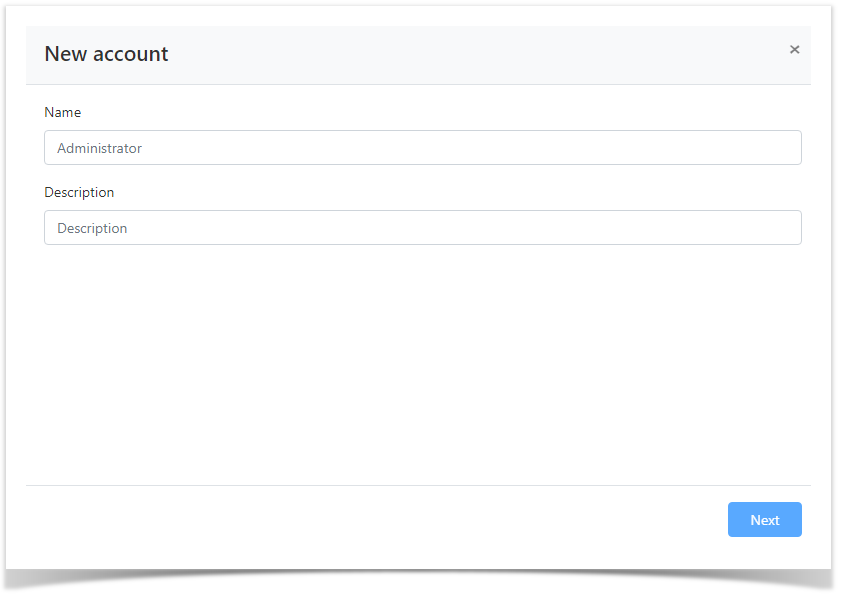
- Fill in the Account name and Description fields.
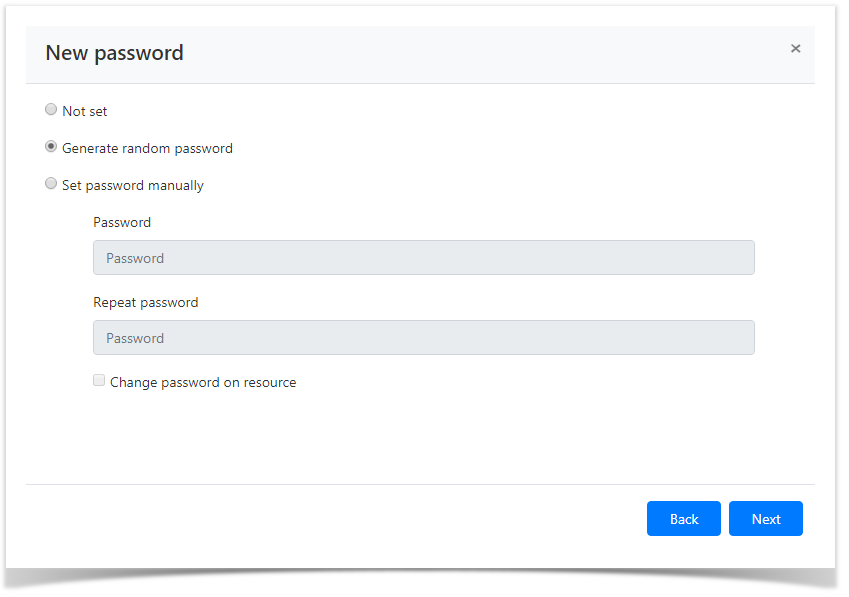
- Select one of the password setting options:
Not set
- Перейдите в раздел Ресурсы и выполните поиск.
- Откройте профиль ресурса и нажмите Добавить учётную запись.
- Заполните поля Имя учётной записи и Описание.
- Выберите одну из опций для установки пароля:
Не задавать
Note icon false При ручном добавлении учётная запись не может быть сохранена без пароля или SSH-ключа. Если для пароля установлена опция Не задавать, то для учётной записи должен быть установлен SSH-ключ. Если выбрана опция Задать пароль вручную без Изменить пароль на ресурсе, то пароль учётной записи будет изменён только в Indeed PAM.
- Сгенерировать случайный пароль
This option is only available if user or service SSH connection is used, as this connection type allows for account storage with SSH key only. If Not set option is selected, then you should set a SSH key for the account.
- Generate random password
Set password manuallyЗадать пароль вручную
Note icon false Опции Сгенерировать случайный пароль или Задать пароль вручную + Изменить пароль на ресурсе могут быть использованы только при наличии сервисного подключения.
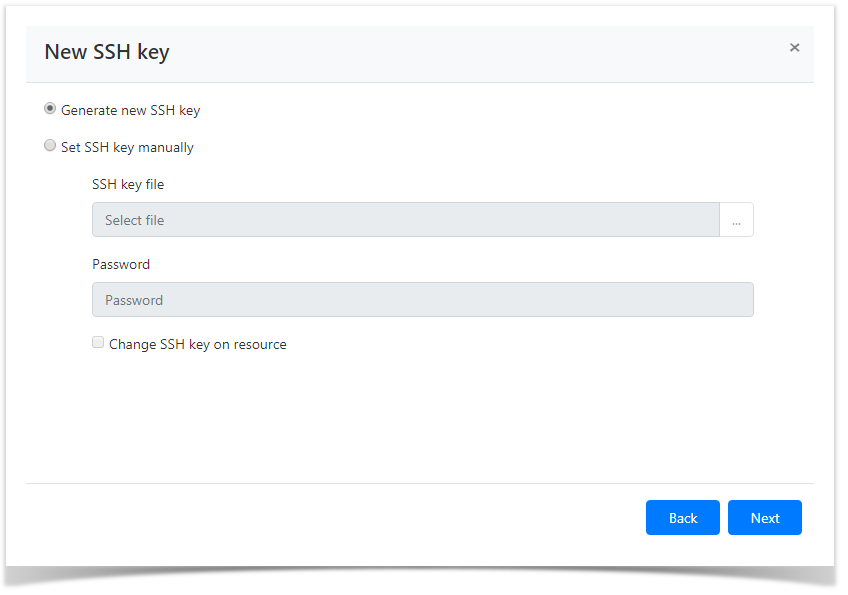
 Выберите одну из опций для установки SSH ключа:
 - Не задавать
- Сгенерировать новый SSH ключ Задать SSH ключ вручную
Options Generate random password or Set password manually + Change password on resource can only be used with service connection. If Set password manually option is selected, and Change password on resource is not, then the account SSH key is changed in the Indeed PAM only.
- Select one of the SSH key setting options:
- Generate new SSH key
Set SSH key manually
Note icon false
Опции Сгенерировать новый SSH ключ или Задать SSH ключ вручную + Изменить SSH ключ на ресурсе могут быть использованы только при наличии сервисного подключения.
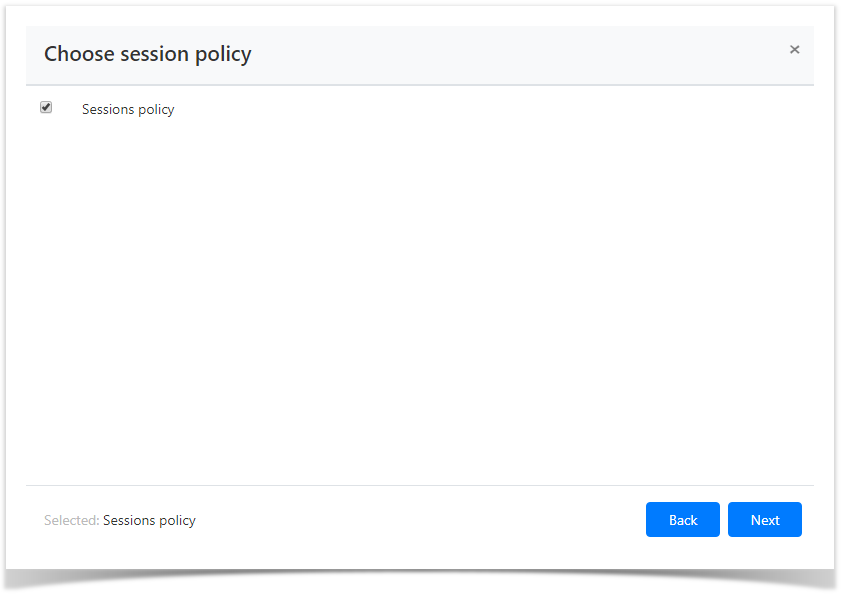
Выберите политику сессий.
Options Generate new SSH key or Set SSH key manually + Change SSH key for resource can only be used with service connection. If Set SSH key manually option is selected, and Change SSH key for resource is not, then the account SSH key is changed in the Indeed PAM only.
Select the session policy.
Look through the account parameters again and click SaveОзнакомьтесь с деталями учётной записи и нажмите Сохранить.
Note icon false Если необходимо изменить параметры учётной записи, то вы можете вернуться на любой шаг нажав Назад.
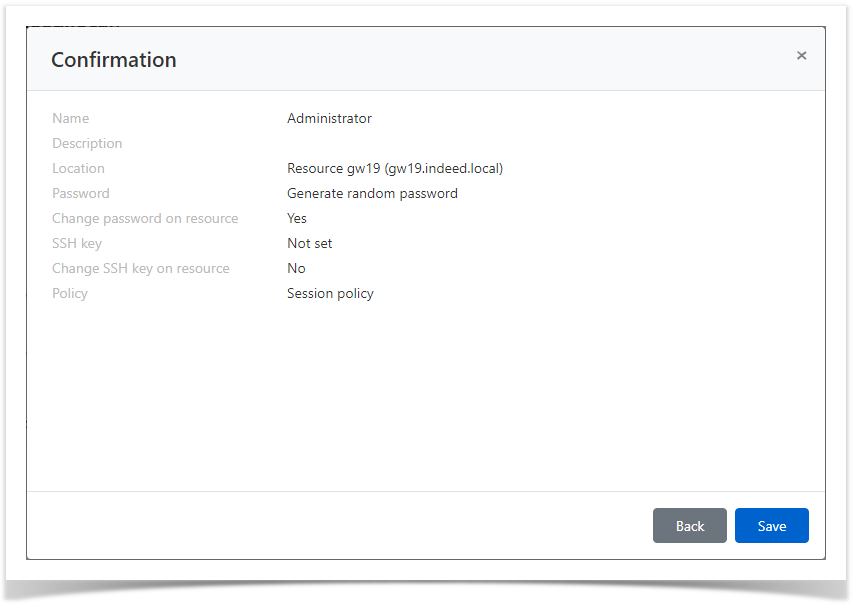
Учётная запись отобразится на вкладке Локальные учётные записи ресурса и может быть использована для создания разрешения.
Синхронизация учётных записей
If you need to modify the account parameters, simply click Back to return to the required step.
The account is then displayed in the Resource local accounts tab. You can now use it to set permissions.
Account synchronization
- Switch to the Resources section and search for the required resource.
- Open the resource profile and click Sync accounts.
Confirm the action by clicking Synchronize.
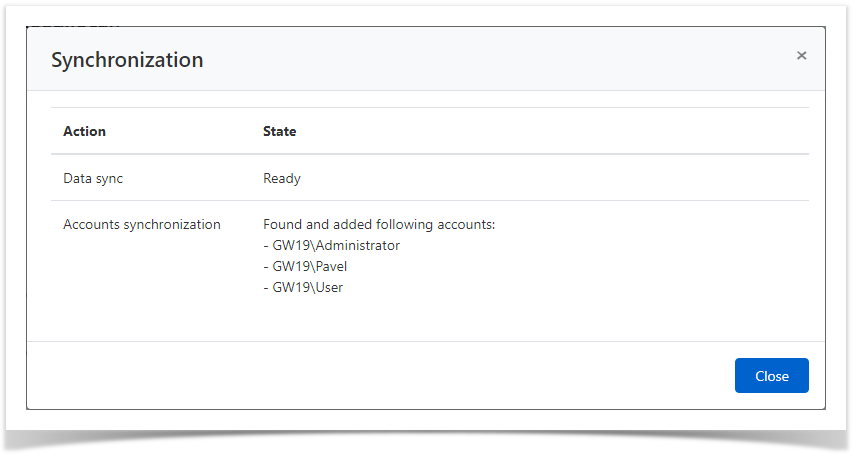
In this case, two tasks will be independently performed:Data synchronization – the name of the operating system, its version and resource name are updated;
Accounts synchronization – data on accounts, their groups in the PAM database is compared with the actual data on the resource and their update is performed
- Перейдите в раздел Ресурсы и выполните поиск.
- Откройте профиль ресурса и нажмите Синхронизировать учётные записи.
- Подтвердите свои действия нажав Синхронизировать
.
Note icon false
Опция Синхронизировать учётные записи может быть использована только при наличии сервисного подключения.
 ). Для продолжения работы с учётными записями необходимо изменить их состояние. Изменение состояния учётных записей описано в разделе Управление состоянием УЗ.
The Synchronization option can only be used with service connection.
The found accounts are then displayed in the Resource local accounts tab with Pending status (). To continue working with accounts, you need to change their status. Changing the status of accounts is described in the section Account states management.
| Backtotop | ||||
|---|---|---|---|---|
|
| Divbox | ||||
|---|---|---|---|---|
| ||||
|