
User console
Access to resources is performed using the user console. Available at the following Получение доступа к ресурсам выполняется при помощи специальной оболочки для Indeed PAM Core, консоли пользователя. Доступна по следующему URL:
- https://pam.domain.local/pam/uc
Обучение аутентификатора
Для работы с консолью пользователя необходимо обучить аутентификатор. Выполните вход в консоль, если пользователь не имеет аутентификатора, то он будет перенаправлен на IDP для его регистрации:
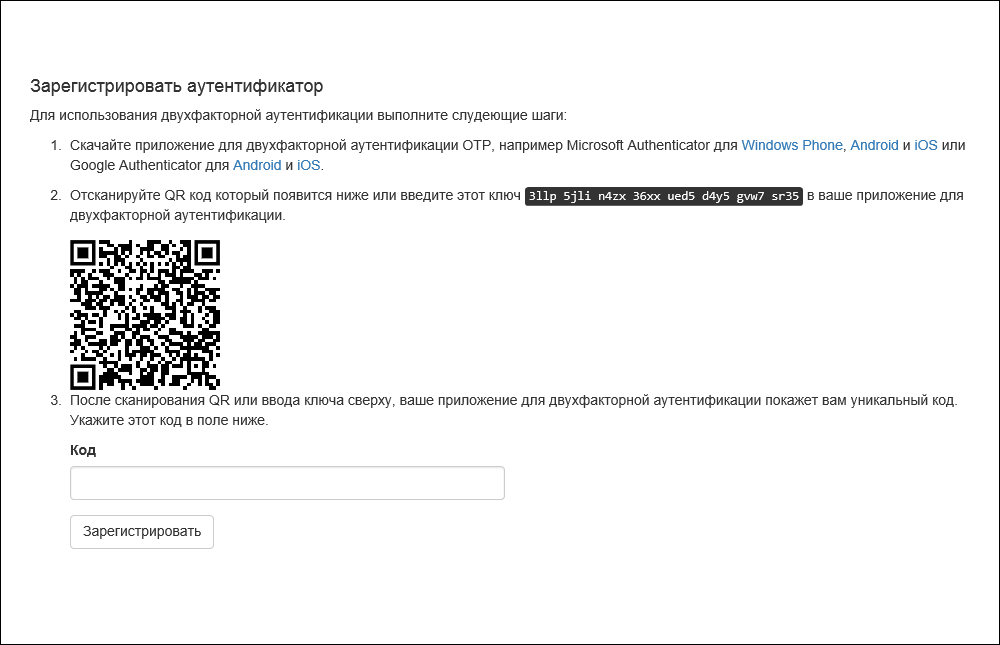
Register authenticator
To work with the user console, you need to registr the authenticator. Log in to the console, if the user does not have an authenticator, then he will be redirected to IDP to register him:
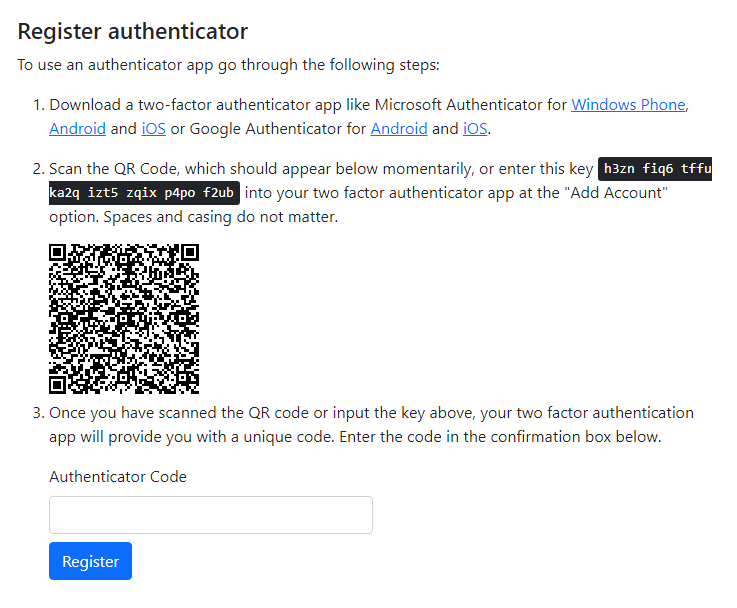
After successful registration, you will be redirected to the user consoleПосле успешной регистрации вы будете перенаправлены в консоль пользователя.
| Note | ||
|---|---|---|
| ||
При превышении попыток неправильного ввода OTP-кода пользователь блокируется на 15 минут. Для срочного разблокирования Администратору PAM необходимо сбросить аутентификатор заблокированному пользователю. |
Получение доступа к ресурсу
В консоли отображаются разрешения на доступ к ресурсам. Для каждого разрешения указан ресурс, тип подключения, адрес подключения и учётная запись, от имени которой будет открыта сессия. По каждому столбцу доступна сортировка. При вводе символов в поле для поиска совпадения будут выводиться по всем столбцам.
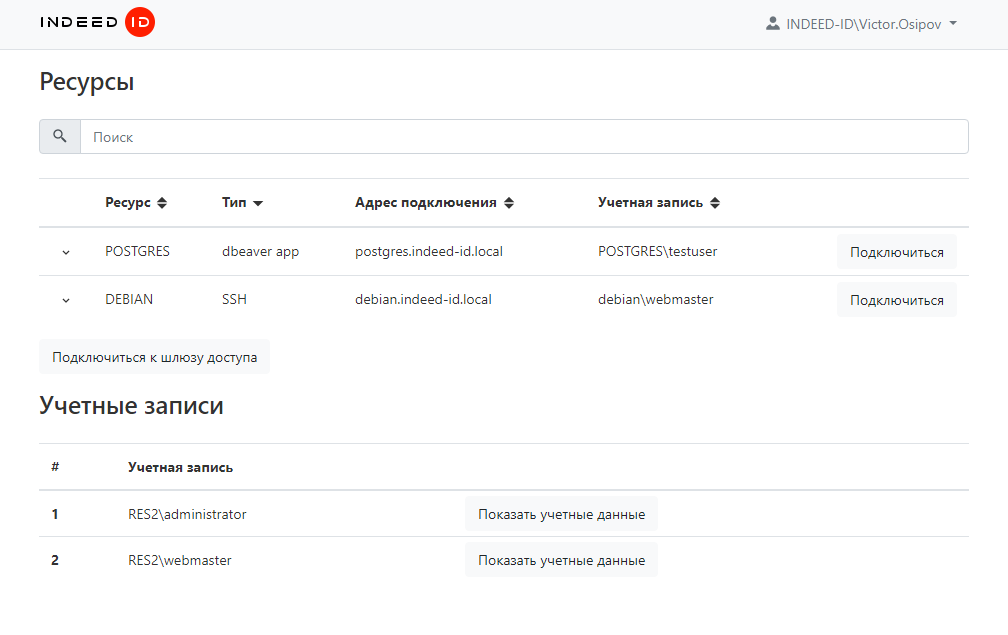
Доступ к ресурсам осуществляется при помощи RDP-файлов. Для загрузки файла необходимо нажать Подключиться справа от нужного разрешения или нажать Подключиться к шлюзу доступа. Второй вариант подключения удобен при большом количестве разрешений, так как позволяет выбрать нужный ресурс после аутентификации.
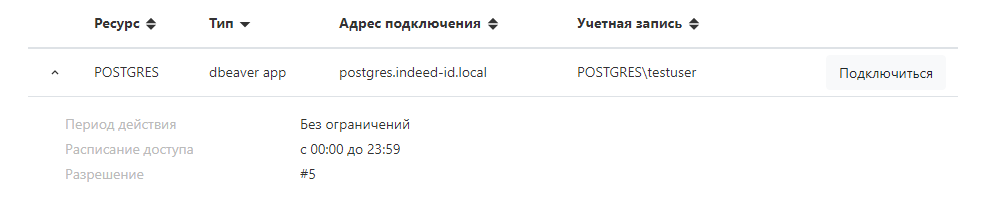
В деталях разрешений отображаются период действия, расписание доступа и идентификатор разрешения (порядковый номер разрешения в Разделе разрешений в консоли управления).
Прямое подключение к ресурсу
- Нажмите Подключиться справа от нужного разрешения.
- Запустите RDP-файл для доступа к ресурсу.
- Выполните аутентификацию и следуйте этапам настройки подключения.
Подключение к шлюзу доступа
- Нажмите Подключиться к шлюзу доступа.
- Запустите RDP-файл для доступа к ресурсу.
- Выполните аутентификацию и следуйте этапам настройки подключения.
Подключение к SSH Proxy
Для подключения к шлюзу SSH Proxy можно воспользоваться любым SSH клиентом.
- Запустите SSH-клиент.
- Укажите адрес SSH Proxy и выполните подключение.
- Пройдите аутентификацию.
- Выберите ресурс для подключения.
Подключение по SSH напрямую
If the attempts to enter the wrong OTP code are exceeded, the user is blocked for 15 minutes. For urgent unblocking, the PAM Administrator needs to reset the authenticator to the locked user. |
Access to the resource
The console displays permissions to access to resources. For each permission, a resource, connection type, connection address and privileged account are indicated. Sorting is available for each column. As you enter characters in the search box, matches will be displayed across all columns.
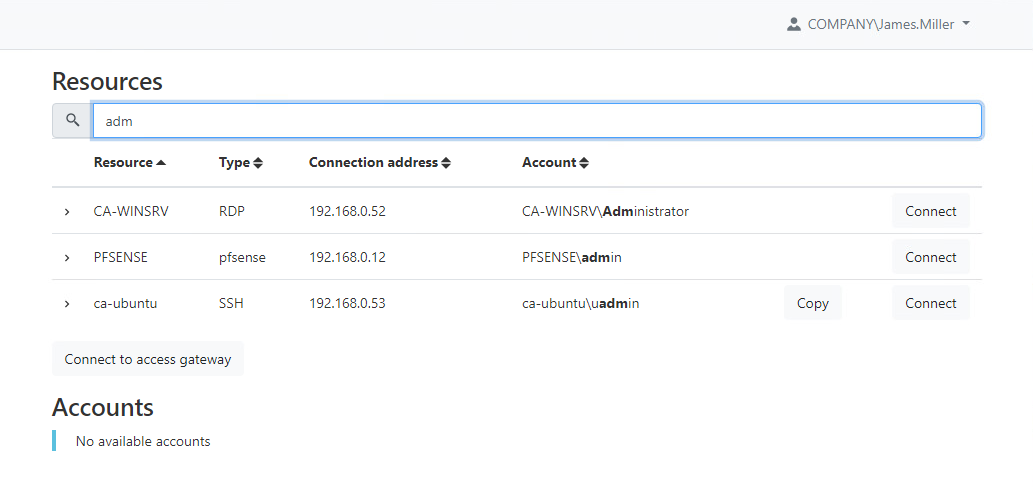
Access to resources is performed using .rdp files. To download the file, you must click Connect to the right of the required permission or click Connect to the access gateway. The second connection option is convenient with a large number of permissions, since it allows you to select the desired resource after authentication.
The permission details show the validity period, access schedule, and permission ID (the sequential number of the permission in the Permissions section in the Management console).
Direct connection to the resource
- Click Connect to the right of the desired permission
- Run the RDP file to access the resource
- Authenticate and follow the steps to set up your connection
Connection to the access gateway
- Click Connect to access gateway
- Run the RDP file to connect to the gateway.
- Authenticate and follow the steps to set up your connection.
Connection to SSH Proxy
You can use any SSH client to connect to the SSH Proxy gateway.
- Start SSH client
- Enter the SSH Proxy address and connect
- Authenticate
- Select a resource to connect
Connect via SSH directly
Each SSH connection has a Copy button in the user's console. After clicking, you will copy the complete connection string and can use it in the SSH client.
Command template for connecting directly to a resource via an ssh clientШаблон команды для подключения напрямую к ресурсу через ssh-клиент:
| Code Block |
|---|
ssh [user-name]#[resource]#[account-name]#[reason]@[proxy-address] |
где:
- user-name - имя пользователяusername
- resource - IP адресaddress/DNS имя конечного ресурсаname of the target resource
- account-name - имя привилегированной учетной записи - name of the privileged account
- reason - текст причины подключения - text of the reason for the connection
- proxy-address - IP адресIP address/DNS SSH Proxy
Если причина содержит пробелы, то её следует указывать в кавычках. Если какой-то из параметров не указан, то SSH Proxy дополнительно запросит необходимую информацию.
После выполнения команды SSH Proxy запросит пароль пользователя и TOTP.
If the reason contains spaces, then it should be quoted. If any of the parameters are not specified, then SSH Proxy will additionally request the necessary information.
After executing the command, SSH Proxy will ask for the user's password and TOTP.
Example:Пример команды:
| Code Block |
|---|
ssh victor.osipov#ubuntu#webmaster#"system configuration"@pam |
Выполнение команд с привилегией root
Для выполнения команд с привилегией root, аналогично sudo используется команда pamsu. Отличие заключается в том, что аутентификация будет запрашиваться у пользователя PAM, а не привилегированной УЗ от имени которой открыта сессия.
Executing commands with root privilege
To execute commands with root privilege, the pamsu command is used similarly to sudo. The difference is that authentication will be requested from the PAM user, and not by the privileged account.
The command with arguments must be preceded by two hyphens. For exampleПеред командой с аргументами необходимо ввести два дефиса. Пример:
| Code Block | ||
|---|---|---|
| ||
[administrator@centos7su ~]$ pamsu -- ls -la /etc/ssl Password for indeed-id\victor.osipov: total 12 drwxr-xr-x. 4 root root 68 Sep 22 19:20 . drwxr-xr-x. 75 root root 8192 Sep 22 17:49 .. drwxr-xr-x. 2 root root 123 Sep 22 19:30 CA lrwxrwxrwx. 1 root root 21 Sep 22 15:51 cert.pem -> /etc/pki/tls/cert.pem lrwxrwxrwx. 1 root root 16 Nov 23 2020 certs -> ../pki/tls/certs [administrator@centos7su ~]$ [administrator@centos7su ~]$ pamsu vi /etc/resolv.conf |
Просмотр пароля и SSH-ключа учётной записи
Если пользователь имеет разрешение, в котором включена опция Разрешить просмотр учётных данных пользователем, то в личном кабинете станет доступен раздел Учётные записи. В разделе отображаются все учётные записи, для которых доступен просмотр пароля и SSH-ключа. Для просмотра нажмите Показать учётные данные, введите причину просмотра и подтвердите свои действия.
Завершение сессии
View account password and SSH key
If the user has permission, in which the option Allow user to view account credentials is enabled, then the Accounts section will become available in the personal account. The section displays all accounts for which the password and SSH key can be viewed. To view, click View credentials, enter the reason for viewing and confirm your actions.
The PAM administrator can configure confirmation to view the password of a privileged account, in which case the user will need to wait for confirmation.
End of session
To end the session, end the user's session on the resource, or close the remote connection window.
Desktop console
To start Desktop Console utility, make sure you are logged on with Active Directory account (otherwise, run Desktop Console utility as an Active Directory user account), double-click the Indeed Identity PAM Desktop Console shortcut, PAM authentication window appears. Register or enter TOTP code. After successful authentication you will see the available resources in the Connections pane.
To open connection double-click the desired resource (also you can right-click it and chose Connect menu item) and complete the authentication. You can open multiple connections at the same time.

End of session
To end the session, end the user's session on the resource, or right-click on resource in the Connections pane or on connection tab and select Disconnect menu item, or close the Remote Desktop windowДля завершения сессии завершите сеанс пользователя на ресурсе, либо закройте окно удалённого подключения.
| Backtotop | ||||
|---|---|---|---|---|
|
| Divbox | ||||
|---|---|---|---|---|
| ||||
|