To work with Indeed Certificate Manager, a registration template Enrollment Agent is required, as well as all other certificate templates that will be used by Indeed CM.
For example, create a Сopy of Smartсard Logon template that will be used to issue certificates for logging in to the operating system using a smart card.
- Open the Certification Authority snap-in.
- Switch to Certificate Templates section in the Certification Authority console tree, right-click and select the Manage item from the context menu.
- Right click on the template Smartcard Logon and select Duplicate Template.
- Open the properties of the created template Copy of Smartcard Logon and switch to Issuance Requirements tab.
- Activate the This number of authorised signatures option and set the number of signatures equal to 1 (default value).
- Define the Application Policy and Certificate Request Agent policies. See Figure 7:
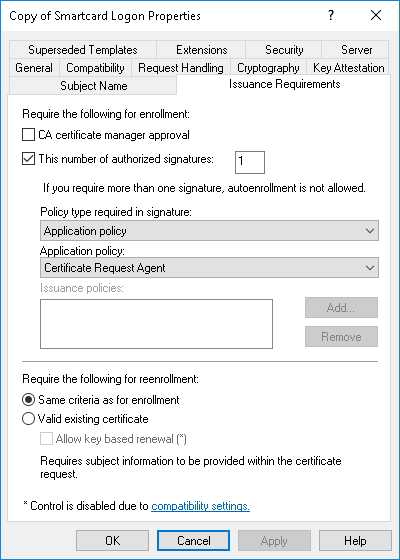 Figure 7 – Microsoft CA certificate template setup: Issuance Requirements.
7. If it is necessary to use private key of specific length, then set the necessary key size at the Cryptography tab in the Minimum key size field.
| Infotip |
|---|
Request Handling tab for Microsoft CA 2008/2008R2. |
8. In the Subject Name tab, deactivate the Include e-mail name in subject name and E-mail name options in the certificate template properties, if it is necessary to issue certificates to users with no e-mail specified in the account (see Figure 8).
 Figure 8 – Microsoft CA certificate template setup: Subject name.
9. In the Security tab, add the service account (serviceca) and set permissions to Read and Enroll for it (see Figure 9).
| Warning |
|---|
Be sure to issue similar permissions for the Enrollement Agent template and for all certificate templates to be used by Indeed CM. |
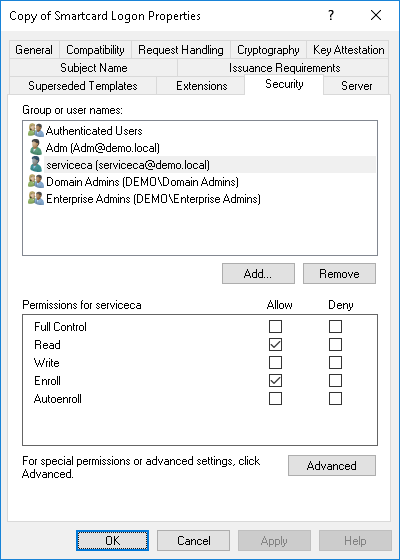
Figure 9 – Microsoft CA certificate template setup: Security.
10. Save the settings by clicking OK.